Adding Text to GIFs … Jeopardy GIF/MEME Version!

Adding Text to GIFs
or
JEOPARDY  MEMESRUS

This post has TWO purposes! First is a post on how to add  Text to GIFs! And secondly … to announce the next Jeopardy  version MEMES ‘R US is ready for training, sometime in May!

It took me a bit of expermenting with a site called EZGIF.com to come up with easy ways to include formatted and positioned text, in any GIF. I chose to work with GIFs that had NO text, as … I wanted my own text!

How to turn this         ….             into THIS!

Click for colourful GIF iMacs!

Click for BIG NAMED colourful GIF iMacs!


The original GIF, whether you found it or created it yourself, will not be modified at all, just a copy, so you can try all kinds of things with a copy. And worst case, you can just start all over, upload the original GIF and keep on trying new features!

Okay, so the original GIF was a flashing iMac of all 13 of the different iMacs made by Apple. So this is a very simple upgrade, the sequence is below.

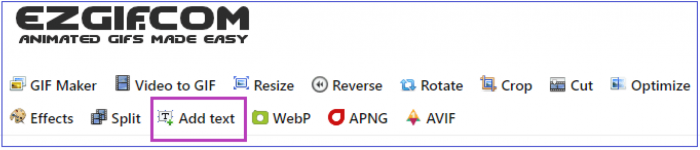
  1. Go to EZGIF.com and click on Add Text. (I have edited out ads)
  2. Click on ‘Choose File’, locate the GIF you want to edit, then click the blue Upload! button. I am using the iMac GIF above as an example.
  3. The GIF will load, start to play, and beneath, all the frames will be displayed in the order they play.
  4. EACH FRAME needs to be edited (for THIS GIF) to have the colour in the frame. So I typed EACH ‘colour’ into EACH text box i.e. “BONDI” in the first box and THEN CLICKED SET! That will edit the default settings and put the word ‘BONDI’ IN the frame, with the default settings. Each time you edit each frame, you must click SET! I will change ‘BLUEBERRY’ to a different font, position, colour and size to show the differences you can edit, as shown below:

This particular GIF needs edited text in EACH FRAME. Other GIFs, that have more animation, will  be a ‘best guess’ as to the timing of the text. But each frame shows a frame, OF the GIF, so actually not that hard. But any text you enter, you must hit the SET for each frame!

When done, at the very bottom of the page, which might be longer, depending on how long your GIF is, will  be a blue button to Create GIF!

Click  it and in a few seconds, your GIF will be created and run! If it is not quite right, go back and edit those frames you want to change! Then … Create GIF! again! 

When done, click on the icon of a floppy disk called ‘save‘ and the site will  export your newly ‘Textified‘ GIF to your downloads folder! It is THAT SIMPLE! The … more artistic part comes when you have more frames, more text, a message at the top, followed by a message at the bottom, making text disappear half-way through … etc. AND that is only THIS SECTION of EZGIF.com.

So, crazy question – what IS the  difference between Bondi and Blueberry! LOL! Maybe, in  person, there is a noticeable difference

Totally free, easy to use and many more features. With this iMac GIF, I had to use the resize feature as the original GIF was HUGE! I resized it to about 25% (trial and error) and then it was perfect for legibility and running in OAC. The bigger the GIF, the greater the chances it might not actually display in OAC. So … just resize it first!

I have also used Video to GIF as sometimes, you have a .. video clip, and this will convert it to GIF and then .. ALL the controls are there for your new GIF.

I have MANY MANY new MEMES/GIFS for our upcoming CHD Training, and I will put a few below, for fun:

COOL Play Around with Websites

  1. EZGIF.com
  2. 10 Best Gif sites to get Great Memes in 2021
  3. 9 Websites to Visit for Amazing GIFs
  4. Top 10 Websites for Finding Perfect GIFs & Memes
  5. Top 25 Gif Blogs, Websites & Influencers in 2021
  6. The best GIF-maker apps and websites for 2020
  7. Explore websites GIFs

How to Create Gifs
In 3 Easy Ways

How to Make a GIF from a Video
(‘Video to GIF’ Tutorial!)

How to Create a Gif in Canva

BE SAFE EVERYONE!
Pandemic


TIME TRAVEL at UVic … Sort of …

TIME TRAVEL
at UVIC !!!!
[ … sort of … ]

TODAY is Day 407 since Help Desk staff – ALL of us, have been working from home!

Sounds like an entry in a Doomsday Diary!

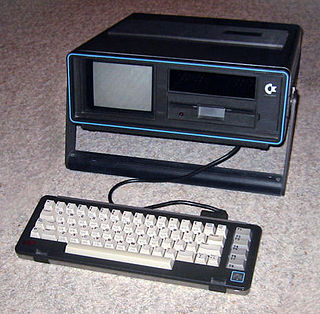
And … kinda right about that! So, of course, I immediately think of Time Travel! But, to keep it centred on TECH .. I will offer proof that the Commodore 64, and in fact, my own Commodore SX-64 is .. THE FASTEST COMPUTER OF ALL TIME! So .. Time Travel between different Techs and how fast they actually .. Travel through Time …. stay with me!

Absolute video proof that it is faster than any computer … AT STARTING UP! Hey, Time Travel is possible … but for now .. only forward!

You can see that my SX-64 is fully booted .. even before the Apple chime HAS FINISHED on my Apple 27″ iMac! BOOM! Hands down WINNER .. for starting up!

And as you can probably guess, my SX-64 is fastest at … shutting down too! Just turn the switch off! My 27″ Mac has to go through the proper shutdown sequence, and that can take anywhere from 30-60 seconds.

So, literally, my SX-64 is faster than my 27″ iMac – coming and going! I also have an old Mac SE, amongst other computers, too! But that needs a FLOPPY to boot up – and installs a RAM disk and … well if you know what a RAM disk is … good times … good times! And the SX-64 would still beat it! I even have an old external SCSI 100MB drive. That is NOT a typo – 100MB drive! Sure was an upgrade from 800K floppies!

OH, and that is my pet Flerken, Lilly! She is always on, so she wins by default! Don’t mess with Lilly!

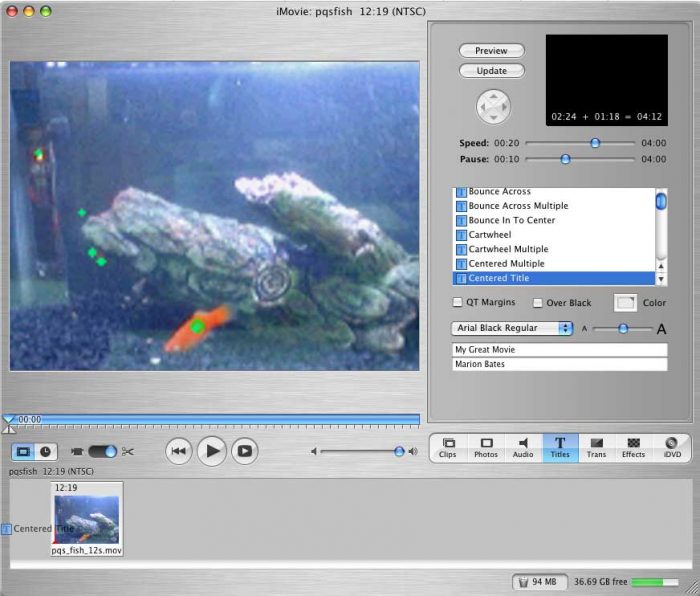
Original iMovie
               Original iMovie

So, sometimes old tech, even ancient tech, might still have a purpose! I want to do a post about the original, ORIGINAL version of iMovie! Yes, WAY back when! I created some training videos WAY before I joined The Computer Help Desk!

      Back to the Future

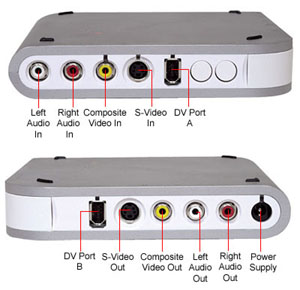
And I still have an old 24″ iMac in CALL, dedicated (i.e. NO internet at all!) for analog to digital video conversion using a Pinnacle Movie box. Works incredibly seamlessly, and literally, I can digitize a 90 minute VHS movie in about 90 minutes of real time conversion! Then burn it to a playable DVD (Single or Double-Density!) in about the same amount of time. BOOM DONE! And uses either USB or Firewire .. how  quaint!

But that is another OAC Post .. in the future of course! BACK to the Future of course!

PS: This is my 200th published post here at OAC! First person to email me with this ‘200’ number wins a … chocolate bar!

Pinnacle Movie Box
      Pinnacle Movie Box
Pinnacle Movie Box Ports
     Pinnacle Movie Box Ports

TIME TRAVELTechnologiesmostly  🙂

  1. Commodore SX-64 (Wikipedia)
  2. Commodore SX-64 Computer Review (YouTube)
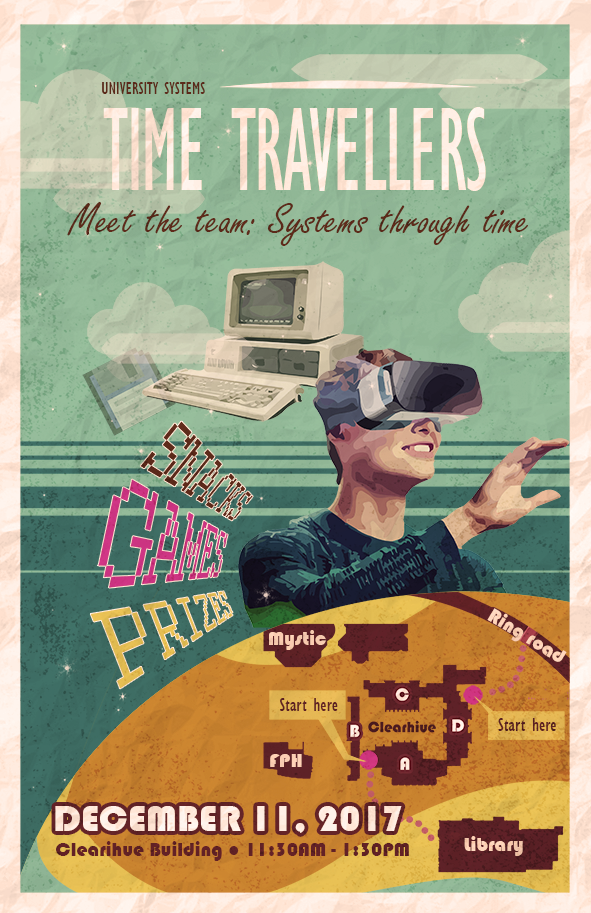
  3. Systems ‘Meet the Team’ Open House (OAC)
  4. The IT Crowd (YouTube .. ALL EPISODES!)
  5. The 25 Best Time Travel Movies Ever
  6. 21 Time Travel TV Shows You Need To Binge-Watch
  7. 20+ Best Time Travel Books for Science Fiction Fans! (Up the Line by Robert Silverberg not there!)
  8. 10 Ancient computers that are still in use today
  9. 18 Things To Do With Old Computers That Still Work Today
  10. Check out how much a computer cost the year you were born

The Best of the 11th Doctor
(Matt Smith is MY Doctor!)
( Time Travel, of course! )

Apple II vs. Commodore 64

The 75 Best Commodore 64 Games Ever!

The 30 Best Time-Travel Movies That Will Blow Your Mind

BE SAFE EVERYONE!

Pandemic


On Campus Photo Shoot

ON CAMPUS
PHOTO SHOOT!

(mostly!)

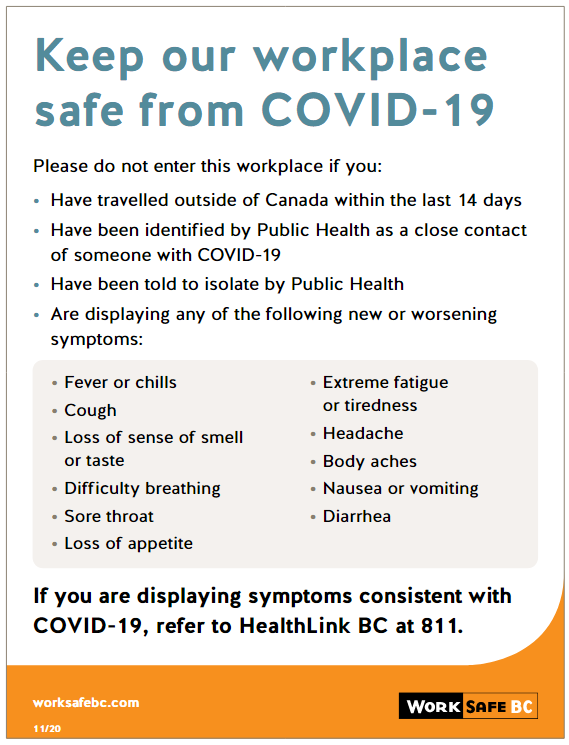
I have actually been working on campus, every Tuesday, since September. I alternate sharing an office with three incredible colleagues, strictly following our Safe Return to Work plans, set out specifically for our return to work.

My anxiety level has lessened but is still there, even though I take ALL the precautions necessary. But it was nice to be back ON CAMPUS for the first time since late last March. And with the Fall session, it looks like we might all be back on campus, Full Time. So, why not celebrate a bit with some great spots ON CAMPUS to check out .. and a few … slightly OFF campus!

One of the best parts of working at UVic is biking up to work. I have been biking every day, for 22 years! Well, not 2020/2021 due to Covid, and not most of 2018 (knee replacement) but I was fully back in the saddle by 2019! And the best part of biking … SUNRISE! SPOILER – I actually took this last week, while … GASP … driving to UVic, but I did bike last Tuesday to campus and will each day from now on … barring horrible weather! Mea culpa!

Oak Bay Sunrise
        Oak Bay Sunrise
Oak Bay Sunrise II
                        Oak Bay Sunrise II
Click on the title below the photo for a much larger image.

And I really like using a Gallery too! And I will include some video for some soothing UVic fountain moments for everyone too! Okay,  some aren’t QUITE from campus, but they were taken on the WAY to campus!

Mystic Vale Sunrise Bike Ride to CHD
Who doesn’t miss the fountain and the sound of water?
Just sit back and enjoy the sound of moving water!

UVic Cool Sites … Just for fun … when you need them!

  1. Campus Virtual Tour (Until we can go back!)
  2. Finnerty Gardens (Ducks and Flowers!)
  3. Munchie Bar(Great coffee!)
  4. Cinecenta (Best popcorn in town!)
  5. Mystic Market (Food galore!)
  6. David Petch Fountain (WordPress site)
  7. Mystic Vale (OAC WordPress site!)
  8. Legend Pole 
  9. Cadboro Bay & Gyro Park (10 minute walk from Campus … TO THE OCEAN!)
  10. TOFINO & Pacific Rim National Park! (Technically … not UVic, but a favourite place of mine!)
  11. Restored Legend Pole in centre of campus rededicated and blessed
  12. Indigenous Art on Campus Tour
  13. The Raven Soaring Pole (Replica of a Gitxsan Memorial Pole by Kweenu)
  14. S’YEWE Legend Pole rededicated(I actually helped out back then, but not in photo!)

ENJOY!

Territory Acknowledgement
University of Victoria

UVic Impact Day

UVic United Way Campaign

BE SAFE EVERYONE!

Pandemic


Social Media at UVic or … LIKES and FOLLOWS

SOCIAL MEDIA AT UVIC
or
LIKES & FOLLOWS!

Social Media
          Social Media

“Social Media” – absolutely …. everywhere!  And that includes UVic!

SPOILER ALERT #1 – I personally am not that much into “Social Media“. Go ahead and use Google to search for me, but .. not much there! Besides this post is about UVic social media!

… AND THERE ARE
MORE UVIC SITES
THAN I IMAGINED!

OAC Online Academic Community
                   OAC Online Academic Community

OAC or Online Academic Community (WordPress) is the most visible and most used by yours truly, so it is #1 on my list of UVic social media!

If you are reading this … YOU ARE AT OAC! Valid UVic NetLink credentials gives you not just a free site, but FREE SITES PLURAL! Make one for courses, for photos, for recipes or for … anything you want! In fact, some courses might even allow for it to be a project or an actual assignment!

UVIC Facebook
                        UVIC Facebook

And of course, Facebook. EVERYONE has a Facebook account! Spoiler Alert #2 – I DO have a Facebook account … but good luck finding it!

One of the BEST UVic OAC sites is My UVic Life! Written by and for students at UVic always has a timely, informative and FUN perspective on life at UVic!

My UVic Life - OAC
                                                               My UVic Life – OAC
Computer Help Desk
Computer Help Desk Twitter

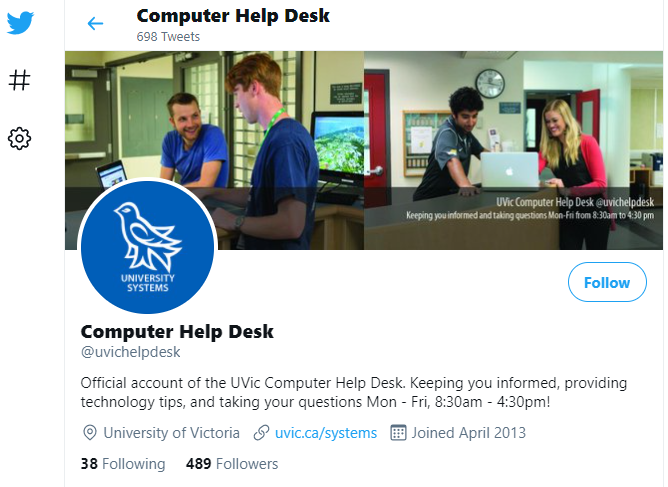
And The Computer Help Desk (shameless plug, yet again!) has a Twitter account to let the UVic community know about any issues affecting them!

Official UVIC Social Media
      Official UVIC Social Media

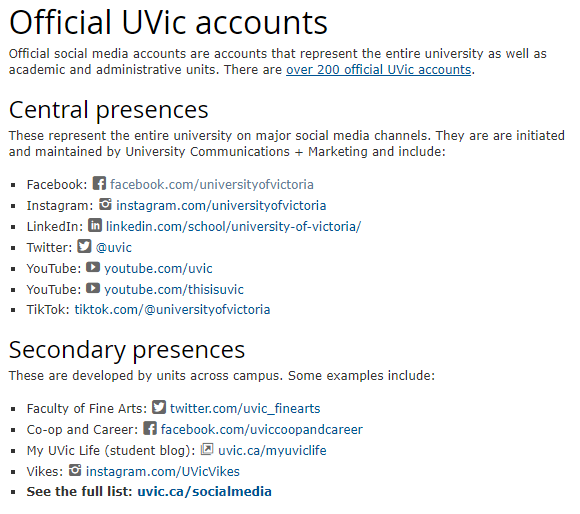
When I went to find a list OF all the social media at UVIC, I found the following site of all the Official UVic Accounts … to the right …

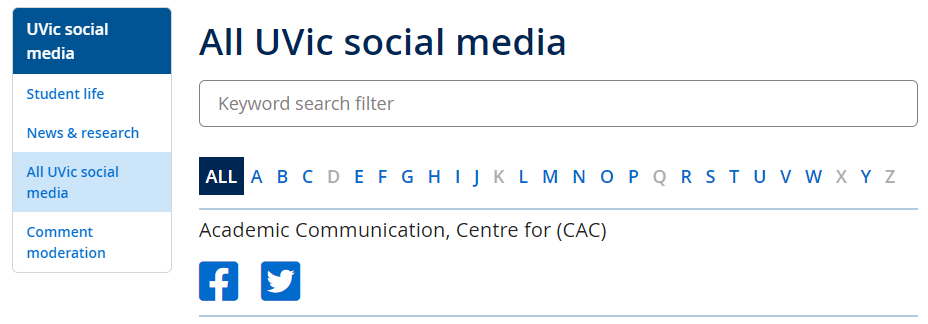
A great list of sites! But then ….. right at the bottom, there is a line that says ‘See the full list: uvic.ca/socialmedia and it takes you to THIS BELOW! The treasure chest of ALL UVic social media sites! WOW AND WOW!

UVIC Social Media
                                                                      UVIC Social Media

It is truly amazing how many Departments, Programs, Services, Galleries and …  YOU NAME IT …  have a social media account of some kind! Everything from “Academic Communication, Centre for (CAC)” to “Youth and Society, Centre for” … JUST shy of a ‘Z’ category … and missing ‘X’ too!

UVic Ecogastronomy
                        UVic Ecogastronomy

And I wonder what is at UVic Ecogastronomy! Click and find out!

Enough UVic social media sites to surf to .. Hawaii! 

UVic Social Media Sites to Surf Towards …..

  1. OAC Online Academic Community (WordPress)
  2. Official UVic Accounts (UVic)
  3. ALL ACROSS UVIC Social Media Sites (SO MANY!!)
  4. My UVic Life (OAC Blog!)
  5. My First Year @ UVic (Facebook)
  6. University of Victoria (Facebook)
  7. University of Victoria (Instagram)
  8. University of Victoria (Twitter)
  9. University of Victoria – Computer Help Desk (Twitter)
  10. University Systems (Twitter)
  11. This is UVic (YouTube)
  12. UVic 2021: What you need to know (YouTube)
  13. Why Choose UVic – Undergraduate Studies
  14. Why Choose UVic – Graduate Admissions

ENJOY!

This is UVic (YouTube)

This is UVic (YouTube)
                                                                                This is UVic (YouTube)

UVic 2021
What You Need to Know

BE SAFE EVERYONE!

Pandemic


OS Emulators on WIN and macOS

 Did You Know
You might be able to experience . . .
macOS on a WIN computer?
. . . OR other neat EMULATORS too?

You can actually try legacy operating systems … on a browser! And it does not matter if you have WIN or macOS either! There are websites that … almost … let you Time Travel to see what earlier version of (then) current Operating Systems were like! They are not intended to be functional, only descriptive and ..  kinda fun, most of them! And no implied guarantee of success here! Just some emulator sites I found out there! 

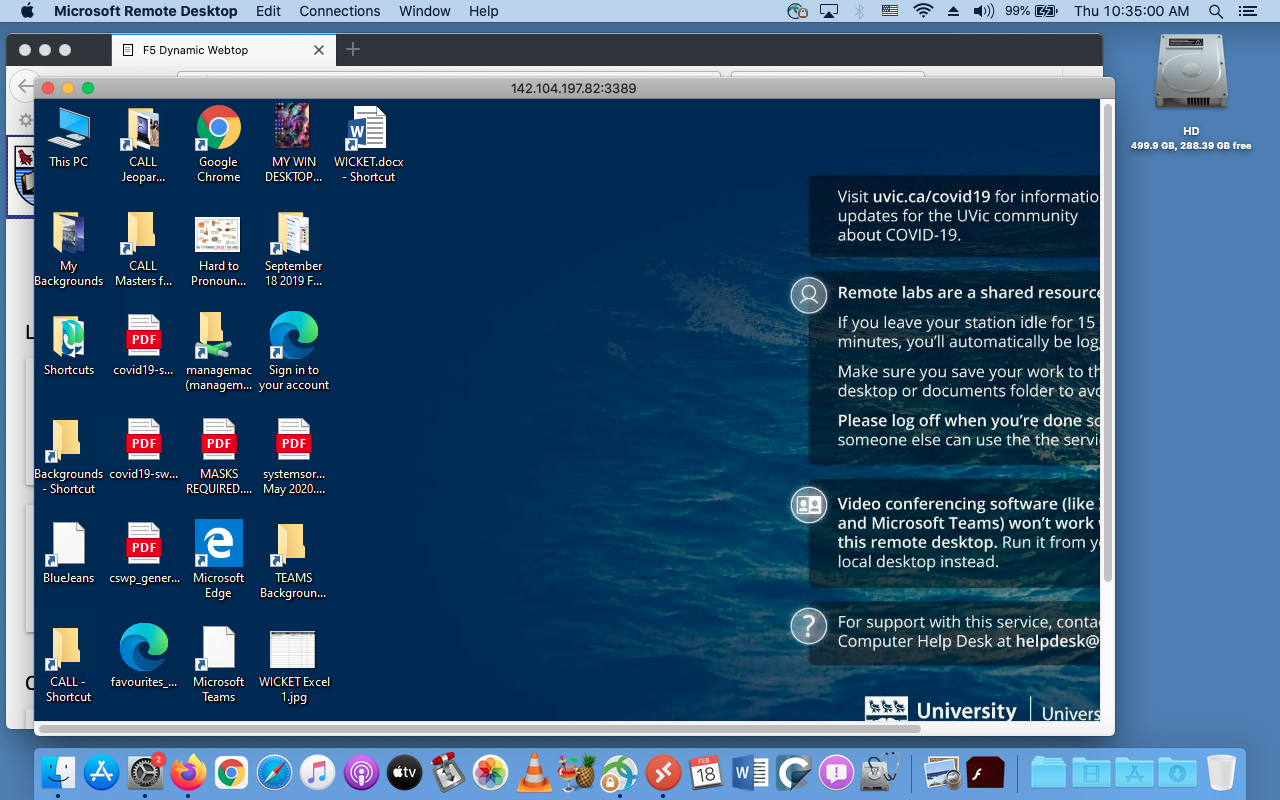
And a HUGE distinction between an emulator of an OS, running on a browser and … actually remote access TO a real computer on campus. That is through  a real service at: remotelab.uvic.ca and is EVEN COOLER! The screen grab below is of my old  MacBook Pro, accessing a WIN computer in Clearihue! A rather existential question arises … is this Windows IN a Mac, or Windows ON a Mac! 🙂 This will be a future post, just to whet your whistle!

remote.uvic.ca
                                                                               remote.uvic.ca

Emulators! According to Wikipedia an emulator is:

In computing, an emulator is hardware or software that enables one computer system (called the host) to behave like another computer system (called the guest). 

There are many, many, MANY browser based emulators out there! So I will show a few of them, and then put a list below to try out.

Let’s try Mac emulators first!

Quite a few of these sites have both operating systems listed, so … a Treasure Trove of Emulators!

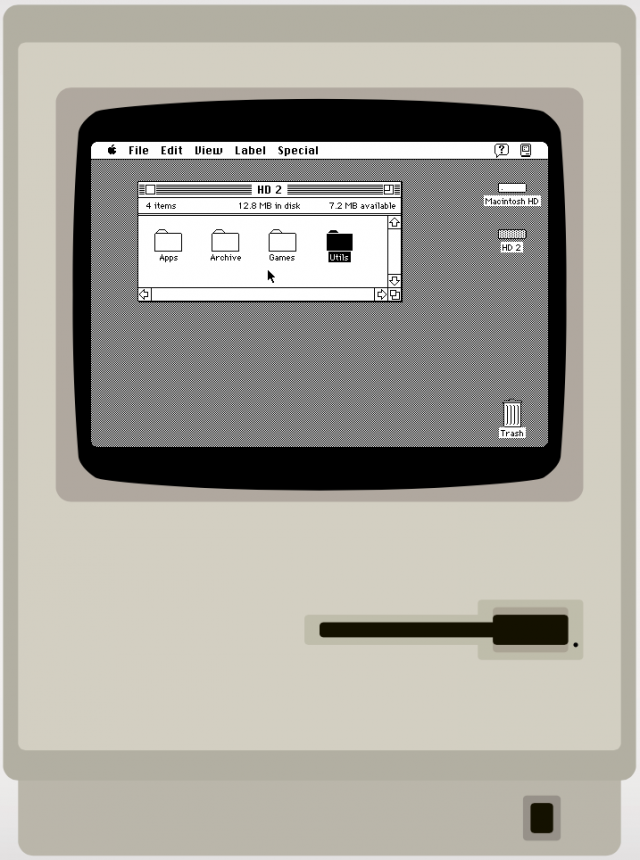
7 classic versions of Windows and Mac OS you can run in a browser lets you try Mac System 7! This is even before the Cats took over the Mac! Fun Fact – I still own a functioning Mac SE, bought way back in … 1989!!! Such a cool computer!

And what is regarded as the single greatest Macintosh game of all time is … DARK CASTLE! And you can try it out at the same Mac System 7 site! A bit more on games later ….

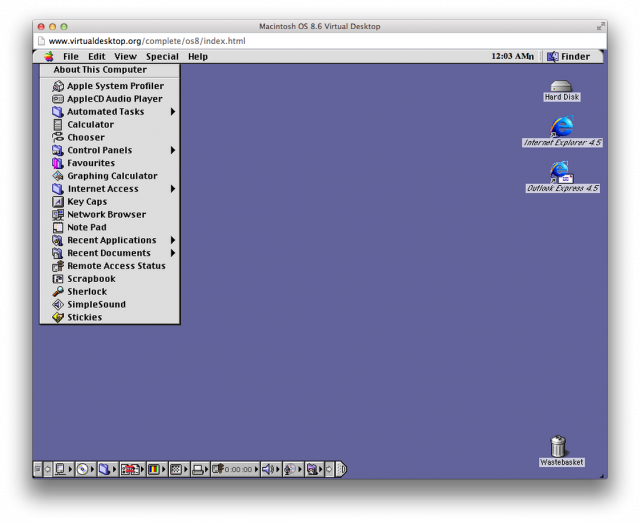
MAC 8.6
                MAC 8.6

Inevitable updates to all operating  systems are … inevitable! And one of the next ones was Mac OS 8.6: The classic Mac OS nears the end of its life and this was a HUGE upgrade from System 7 – the number alone is … 1+! You can go directly there from here or click the Mac desktop to the left.

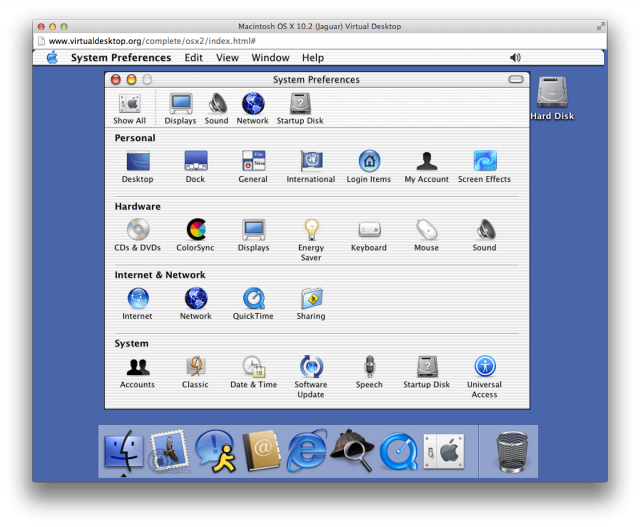
OSX 10.2 Jaguar
           OSX 10.2 Jaguar

And one final Macintosh emulator OS X 10.2: The classic Mac OS is retired …ah, good times, good times …. A HUGE selection of MANY emulators is at VirtualDesktop.org, including OS X 10.2.


And now WINDOWS

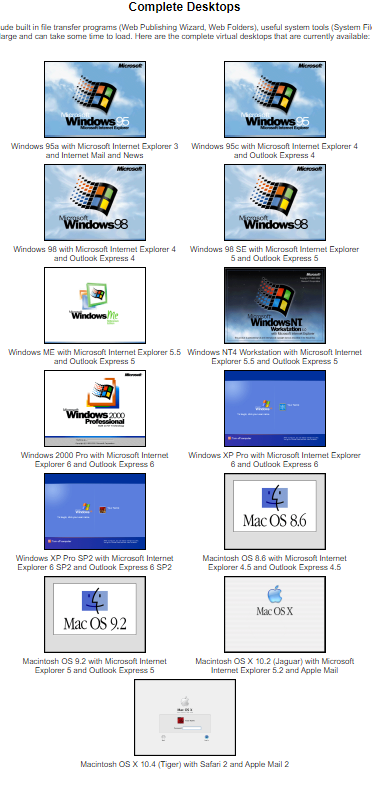
The one that started them all .. well, at least in 1995 .. WINDOWS 95! And again, these are all from VirtualDesktop.org, amongst many others! Considering The CALL Facility started out with DOS based machines, running McMaster French, more closely resembling a text adventure game … WINDOWS 95 WAS CONSIDERED SLICED BREAD at the time!

WINDOWS NT
           WINDOWS NT
WINDOWS ME
       WINDOWS ME

And a final pairing of WINDOWS ME and WINDOWS NT! Microsoft sure like using lots of letters of the alphabet! But, to be fair … Apple liked using cats before Roman Numerals and then portable devices started to show up and now all kinds of … flavours …  just like an ice cream shop!

For more Virtual Experiences, I will list a few sites below, but the best to see the most, is at VirtualDesktop.org. Not all there, but .. enough to do a decent days work of Time Travel and see how Operating Systems have changed considerably over the years!

C64 Emulator
              C64 Emulator

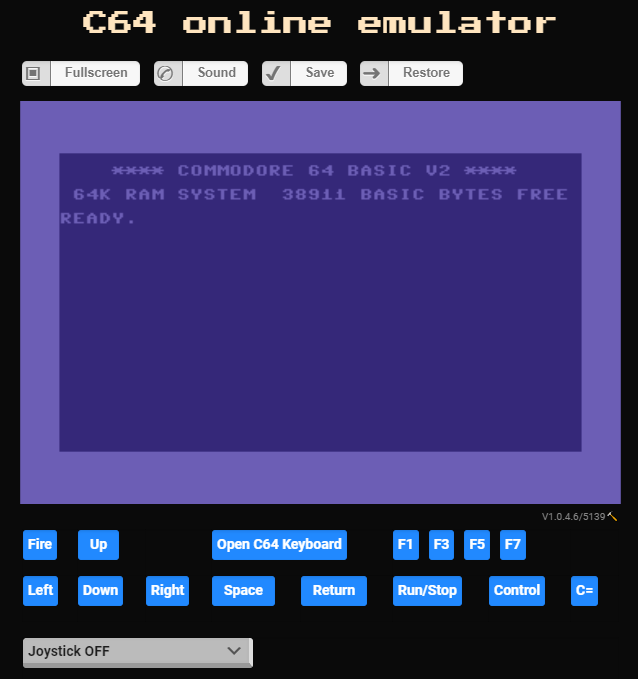
And one last emulator, from my first ever computer that I bought … COMMODORE – C64 Online Emulator! The drawback here is that you need to upload some kind of file FROM an original C64, then it works. So, not much to try here. But I am going to find out HOW to do it though! And even more Online Emulators from the same place too!

I mentioned games earlier, but will have another post in the future about games. Spoile – I am NOT a Gamer!

Emulator Sites to Surf Towards …..

Virtual Desktops
                              Virtual Desktops
  1. List of Emulators (Wikipedia)
  2. List of Computer System Emulators (Wikipedia)
  3. Commodore 64 emulators (Wikipedia Category)
  4. 7 classic versions of Windows and Mac OS you can run in a browser
  5. Mac OS 8 emulator lets you relive the past for the first time
  6. 5 best PC emulation software for Mac [2021 Guide]
  7. Emulators can turn your PC into a Mac, let you play games from any era, and more — here’s what you should know about the potential benefits and risks of using one
    VICE – the Versatile Commodore Emulator
  8. Commodore 64 emulators (Wikipedia)
  9. Commodore 64 emulators for Windows 10
  10. C64 Forever 8 “R3”: Create & Play
  11. C64 online emulator
  12. CCS64 – A Commodore 64 Emulator – By Per HÃ¥kan Sundell
  13. On-line Emulators
  14. Virtual (Complete) Desktops – SAVED THE BEST FOR LAST!

ENJOY!

How to Play Commodore 64 Games on PC!
Commodore 64 emulator! Vice Emulator Setup!

Kim Justice’s Top 50 Commodore 64 Games
of All-Time (YouTube)

Pawn Stars:
A Working Commodore 64
(Season 14) | History


Did you know UVic has a YouTube Channel?

Did You Know
UVic ...
has a
YouTube Channel?

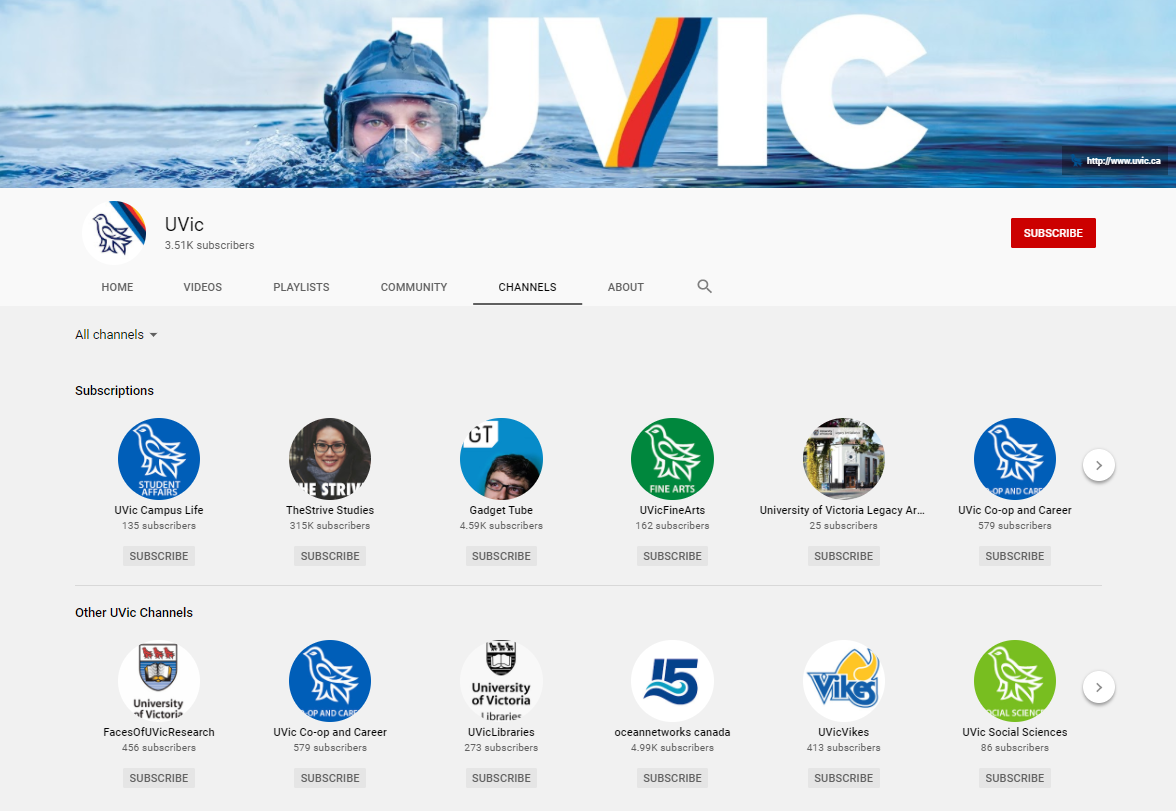
You probably thought, yes, I … suspected that UVic has a YouTube Channel, but have you BEEN THERE? Probably not! But it is worth your while! So, if a picture is worth 1,000 words, then a video apparently worth 1.8 MILLION WORDS!!
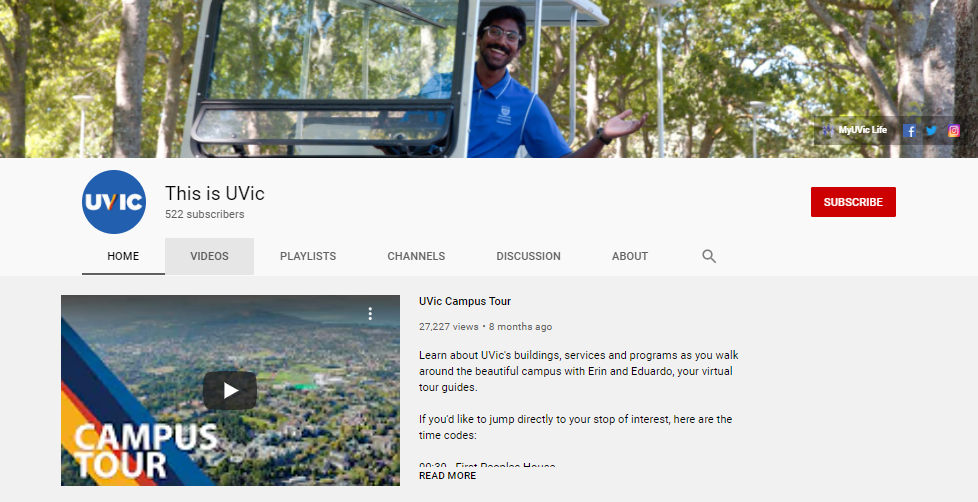
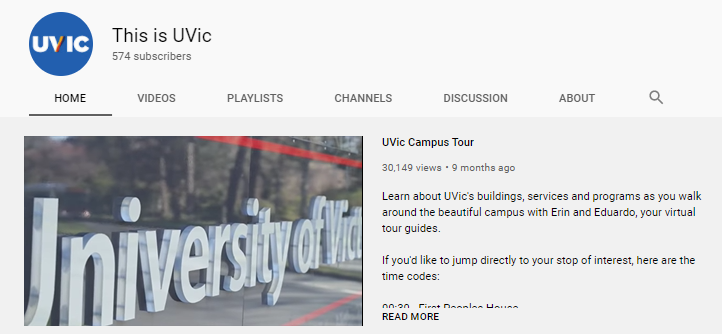
UVic’s YouTube channel has some amazing videos for learning about UVic, Departments, Airiel views by Drone, National  and International stories about UVic and many Hints, How-To’s and just plain FUN VIDEOS!

In no particular order, sort of, are some of my Favourite UVic YouTube videos. There are so many …. and I am sure you will  find many of them fun, useful and informative! And many student bloggers are posting about their experiences at UVic throughout the semester at another OAC site, My UVic Life (another shameless promotion of UVic here at Bog Blog!)

And you can also find my video, from a PowerPoint at YouTube too! Just go to my Page, “The CALL Facility … and other Mysteries of UVIC” or just find the link to ALL my Pages, on the right-hand side of each post.

You can click on the text link, or the thumbnail of the UVic video below to go to a new tab with that video.

ENJOY!

University of Victoria aerial highlights


UVic Campus Tour

Humanities at UVic

UVic Channels

UVic ranked as a global leader in climate action


ZOHO – CALL Bookmarks – UPDATES

ZOHO …
CALL Facility Bookmarks
UPDATES
Cosmetic & Functional

NOTE: Unfortunately, I recently discovered that ZOHO is no longer free, at least for the purposes that The CALL Facility used it for. I still have access as an Admin, but I am researching how I might be able to continue to provide the same resources in perhaps a slightly different format. Options such as a website, pdf, Word, Excel or other kind of document, but so far, they are not as easy to use, create, support and maintain. But I am hopeful and optimistic!

MANY THANKS to everyone who supported The CALL Facility (& me!) in offering this very unique resource over the past many years, probably dating back about 15 years or more! ZOHO came about as a response to needing a quick way to access Language bookmarks in CALL! Way back when, and this is BEFORE GOOGLE, I would email an attached bookmark file for specific browsers such as Explorer (Mac!), Safari and even Netscape Navigator! Good times, good times!

ALL the bookmarks are  still ‘at’ ZOHO, and I can access them, and export them into a simple .pdf document if anyone wants them. I can subsort, or include them all in one document. Please let me know! But for now, I won’t be updating ZOHO on a regular basis while I research other, if any, similar resources for Instructors and students.

In the meantime, probably the best strategy, for Instructors, would be to Copy/Paste website inks directly into  Brightspace for students. Yeah, cludgy and inelegant, but … sometimes old school works! The first shift I had in the CALL Facility – was bulk erasing and then making copies of Spanish lessons .. on cassette tapes! Good times, good times!

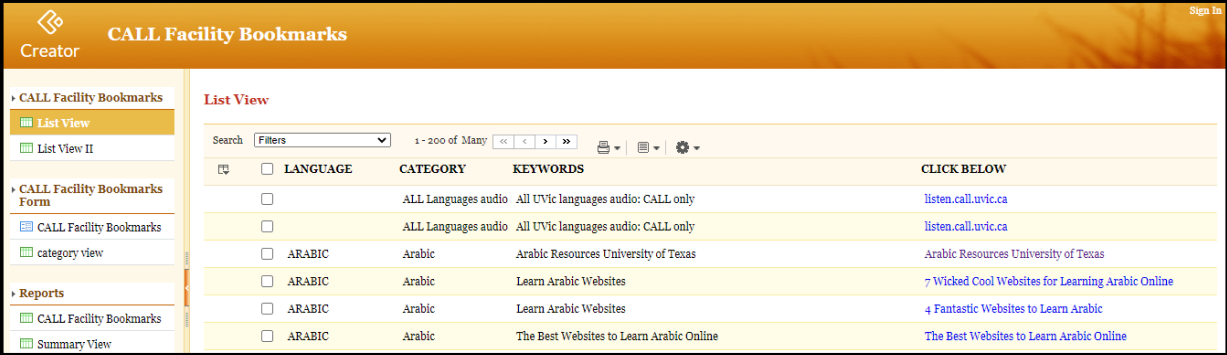

AND, if you DO CLICK HERE or on the icon of a PDF to the left, then you can view and download a .PDF version of ALL of The CALL Facility ZOHO Bookmarks in alphabetical order. Yeah, not ideal, but … at least they are all in one document.

And many thanks to Mark vH who helped me set it up so very long ago!


Zoho CALL Facility Bookmarks, is an on-line database of over 1100+ useful Language sites as well as utilities, orientations, copyright information, digital media access and world news sites. Yes, you could look some things up at Google, but … I (& many others too!) have done that already and you might just find some very interesting sites and information, based on what students and Instructors think is helpful. In fact, most of the links have been suggested by students and Instructors and might not show up high on a Google search! Diamonds in the rough!

But there have been some changes to ZOHO over the holidays. Their default template seems to have  changed from what once looked like below:

ZOHO CALL Facility Bookmarks
                                     ZOHO CALL Facility Bookmarks – Old Interface

To what it now looks like today:

NEW ZOHO Spanish
                                  ZOHO CALL Facility Bookmarks – New Interface

So  I will point out some important features that still work, but are now in different locations or use a different button or icon. You can still search, sort and resize columns, all of which are very handy at any time.

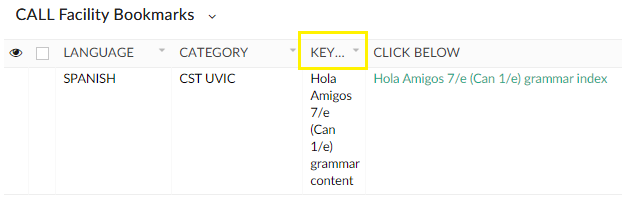
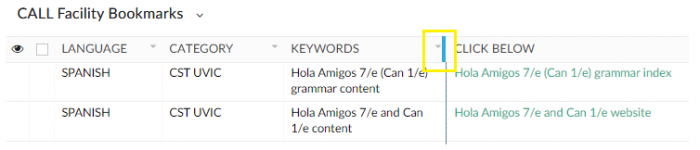
First, resizing columns. ZOHO will sometimes minimize the width of a column such as KEYWORDS. To widen any column, just position the cursor to the RIGHT of the Name of the narrow column (KEYWORDS) and your cursor will change into a small I-beam with left<-> right arrows. Click, hold and drag to the right to widen, or to the left to narrow the column too. Just like adjusting the size in a spreadsheet like Excel! The two images below show what a narrow column looks like and where to widenit with your  mouse.

ZOHO Narrow Column
                                                                      ZOHO Narrow Column
ZOHO Wider Column
                                                                     ZOHO Wider Column

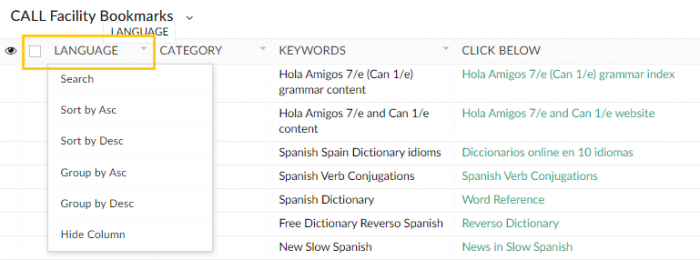
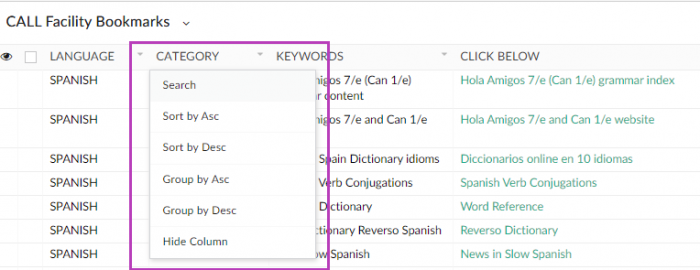
And Searching AND Sorting a category, is now just one-click away! Just position your cursor over the category you want to SorUnder LANGUAGE, CATEGORY, KEYWORDS and CLICK BELOW is built into each Topic. Just click on the title above each Column and you will get a drop-down menu to choose how  you want to sort. Below are LANGUAGE and CATEGORY. If you look closely, there is a small inverted triangle, a visual clue that there is a feature there. You do not have to click ON the triangle, just anywhere in the name of the column and you get the drop down menu that includes Search, Sort by Ascending, Sort by Descending and other options.

ZOHO Language Sort
                                                                         NEW ZOHO LANGUAGE Sort
NEW ZOHO Category Sort
                                                                     NEW ZOHO CATEGORY Sort

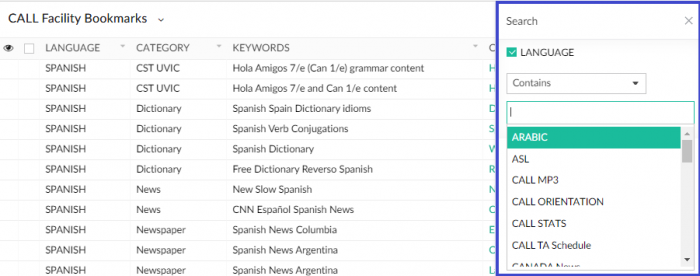
When you select Search from the drop down menu, another menu box will open on the right hand side where you can set the criteria to search for, even if it is not in the LANGUAGE column! One stop searching is just one-click away! And if you ever need to close any popup window or menu, there is usually an ‘X’ in the top right-hand corner, to close that menu. You can also just click into an ’empty’ spot somewhere else in the ZOHO screen.

NEW ZOHO Search
                                                             NEW ZOHO Search

AND BONUS! There are more ‘Hidden in Plain Sight’ menu options as well. On the far right hand side, are 3 small icons. The first is a magnifying glass which will bring up the Search box. The second looks like a … coffee filter to me and .. that is what it is! You can filter multiple searches through this option, such as “Spanish Utilities Copyright” or other combinations. ZOHO will find them and present the filter criteria as well, and you can close them anytime. The final choice of 3 horizontal bars changes the view of ZOHO, with some additional functions, but nothing permanent and can be re-selected at anytime, and the original ZOHO link will always work too.

NEW ZOHO Menu
                                                                          NEW ZOHO Menu

And you might ask …. why does ZOHO default to Spanish with this link? Two reasons! First .. I am still learning how to set up Reports, Views and default and/or customizable access in ZOHO since their … update over the holidays!

And secondly … SPANISH Instructors have been enthusiastic supporters of ZOHO as a resource for their students for YEARS now! And so, yeah, it is … who you know! 🙂 Thanks to RS for your support and patience!

I do want to learn how to set up specific Reports, Views and other customizable aspects of ZOHO to make it even better than ever!

I have also updated my OAC ZOHO CALL Facility Bookmarks Page as well, with the most recent interface and a few more hints. It is always available on the right hand side of any Post, under Bog Blog Pages.

Thanks to everyone for their patience and support of The  CALL Facility! And I can hardly wait to get back to being on campus …. but nobody knows when just yet!

SSShhhh . . . Clearihue’s Hidden Secrets . . . & GEMS

 . . . . SSShhh . . .
. . . or . . .
Clearihue’s Hidden Secrets
. . . or . . .
CLEARIHUE’S HIDDEN GEMS!!!! 

Clearihue has … SECRETS? Well, maybe not … secrets …. exactly! More like HIDDEN GEMS that many students might not know about! So I will list a few of what I consider to be Clearihue’s Hidden Gems! And … Spoiler Alertthe VERY BEST ONE IS AT THE END! [Double Spoiler – shameless product placement on my part!]

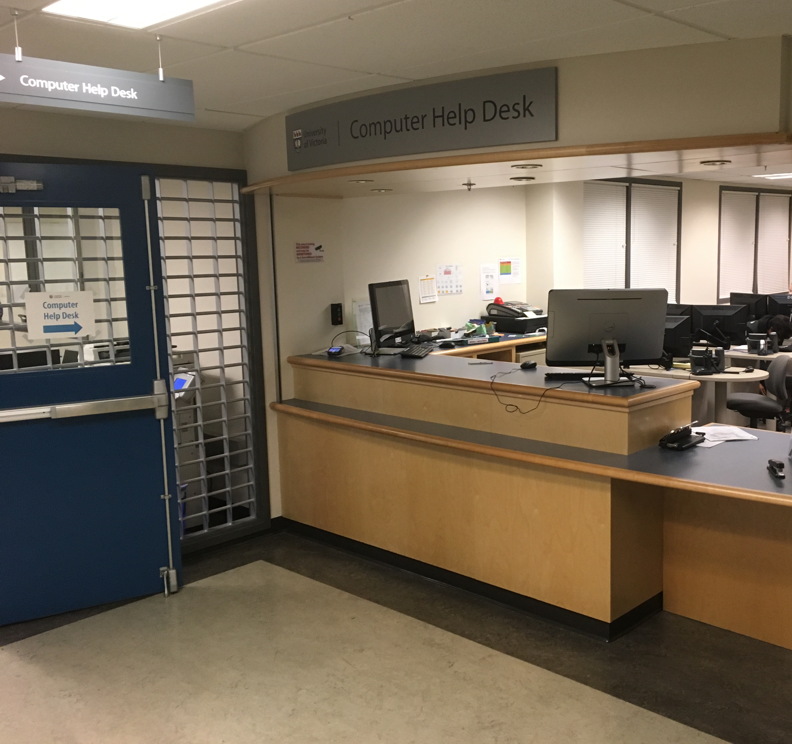
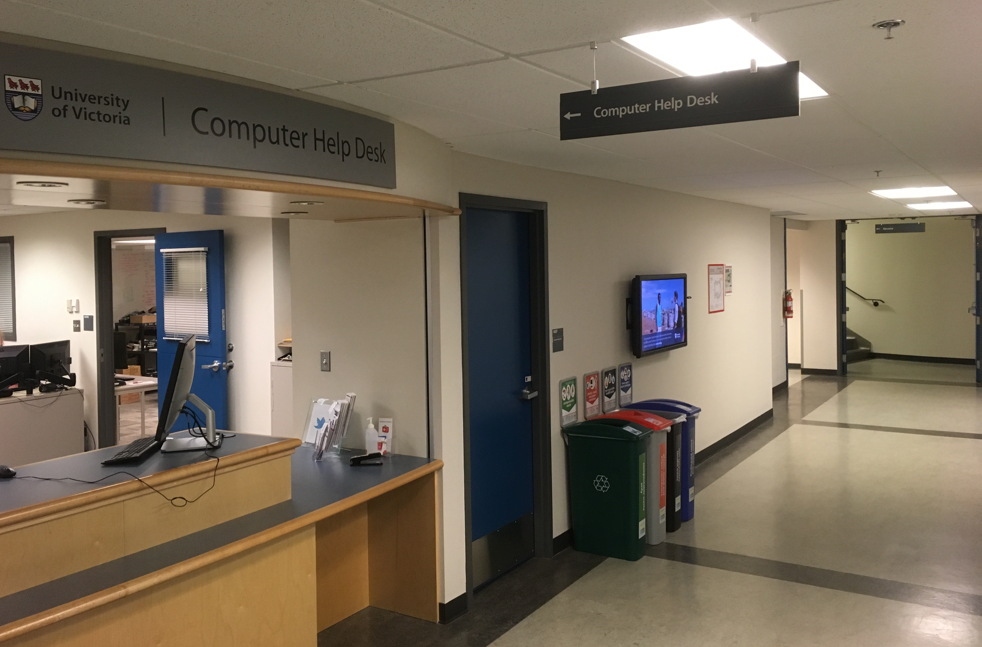
The Computer Help Desk! What, how can CHD be a Hidden Gem? Well, why not ask someone … how to get there! We are located in the A-Wing of the BASEMENT of Clearihue! Simple enough, but only 2 stairwells with twists and turns, or ONLY ONE elevator with MORE twists and turns … will get you to the front counter of The Computer Help Desk

And did you also know there are TWO MORE satellite CHD locations in Clearihue? At the entrance to all the Computing Classrooms in A-wing, first floor and …. in The CALL Facility too! I’ll bet you didn’t know that!

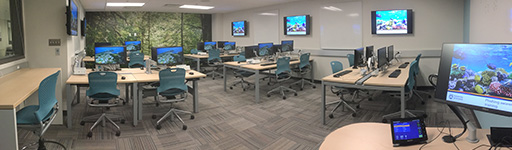
Computing Classrooms! The actual computing classrooms, 1st Floor of A-Wing … AND in the Lower Floor of A-Wing too!. Many students do not know that there are 4 classrooms (3 WIN / 1 MAC) and a Multi-Media (WIN & MAC) alcove for drop-in use upstairs! AND that there are 3 MORE classrooms and Multimedia computers in the basement! Rooms ARE booked for scheduled classroom use, but are fully drop-in outside of those posted times. And when Covid is over, hopefully we can go back to just dropping into the computer labs!

And during Covid, you can BOOK A WORKSTATION in CLE A102 (WIN), A103 (MAC) and A108 (WIN)

During Covid, all other rooms in all other buildings are unavailable. We strictly adhere to UVIC Covid guidelines in ALL our Computing Facilities and The Computer Help Desk in Clearihue.

Clearihue A102
Clearihue A102
Clearihue A030
Clearihue A030 (Click photo  for more pictures)

And if you have not been to our newest upgrade classroom in Clearihue A030 in the basement of Clearihue, just down the hallway from The Computer Help Desk CLEA037. It is a really SPIFF CLASSROOM!

BEC Bookable Rooms
BEC Bookable Rooms

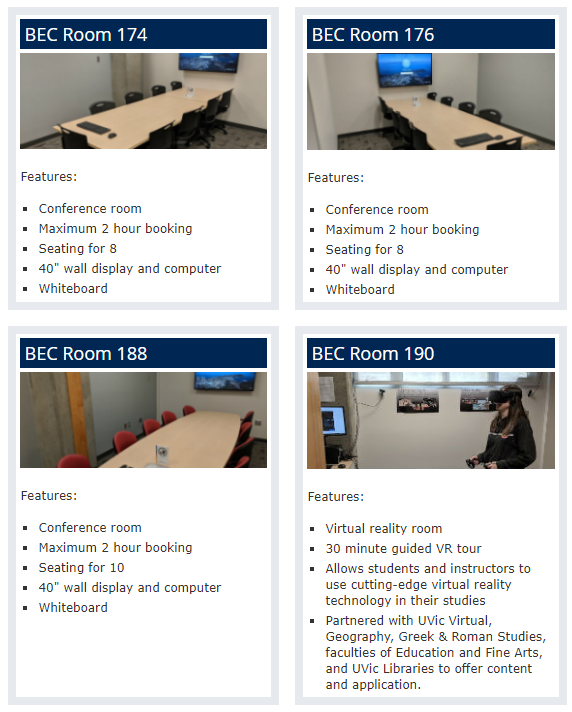
And it gets even BETTER! Ever want to book a room for a study session  or a group project and nothing is available at the Library? Well, check out BEC and their Rooms that you can book! AND THAT INCLUDES A ROOM DEDICATED TO VR TECHNOLOGY! Okay,  so technically, not in Clearihue, but let’s call it a HIDDEN HIDDEN GEM, eh! Bet you  didn’t know THAT!

And there are a few other locations in Clearihue that might warrant a bit of a scavenger hunt on your part ……

Clearihue Corner (CLE B001b)
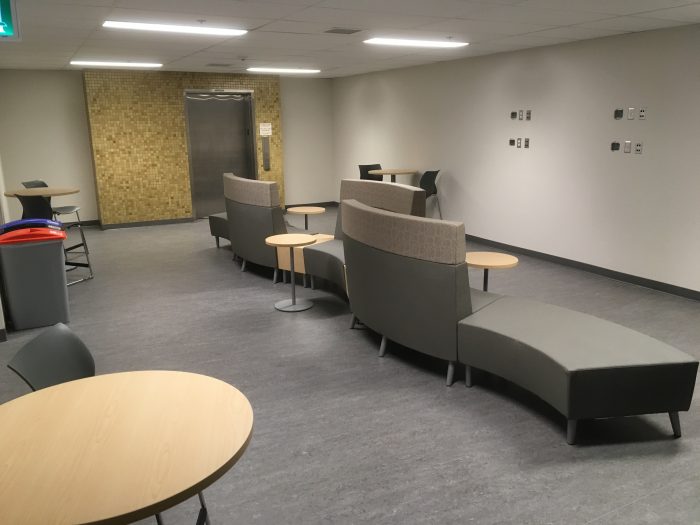
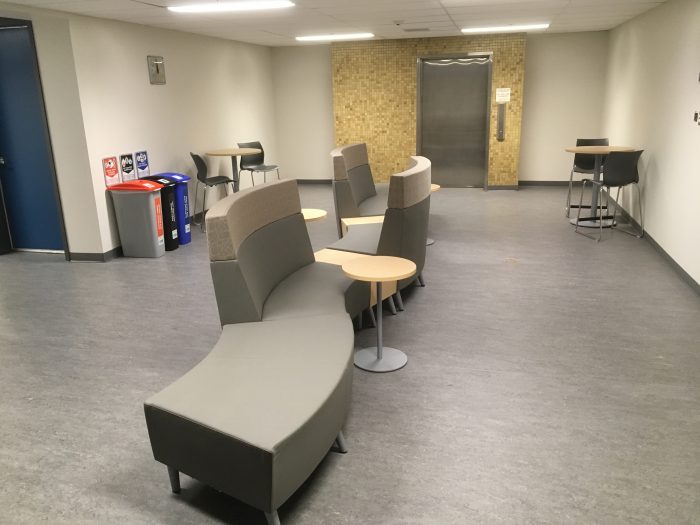
And this is a highly guarded,  super secret, need to know basis location ….. NOT! But it is just as hard to get to as The Computer Help Desk! Either from the pictured elevator in B-Wing, or the stairwells at the groundlevel corners of B-Wing. Spacious,  quiet, comfy sofas and plugins too! There are even recycle bins to put your organics, plastics, refuse and paper! BE GREEN! There are classrooms, office space and meeting rooms, so just remember to be quiet and polite in this section of Clearihue please.

CLE B001b
CLE B001b
CLE B001b
CLE B001b

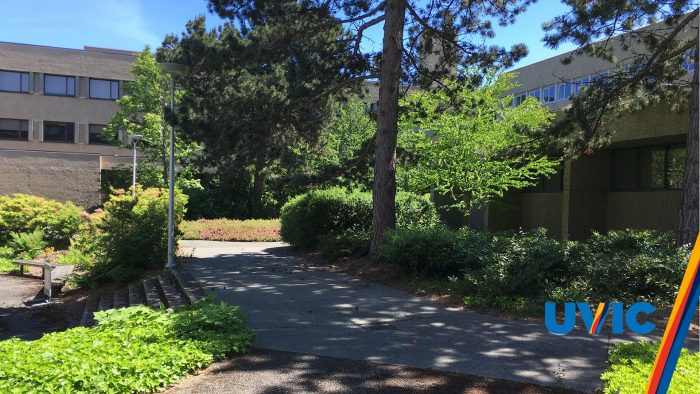
Clearihue Inner Courtyard

What a great hidden gem .. hidden in plain site! Quiet, accessible from literally every corner, with sun and shade for all! Even some steps to sit on for a group lunch! Hidden in plain site! the photo below is actually available as a Virtual Background for Zoom! Oh, and … remember …  no smoking anywhere inside Ring Road! 

Clearihue Courtyard
Clearihue Courtyard

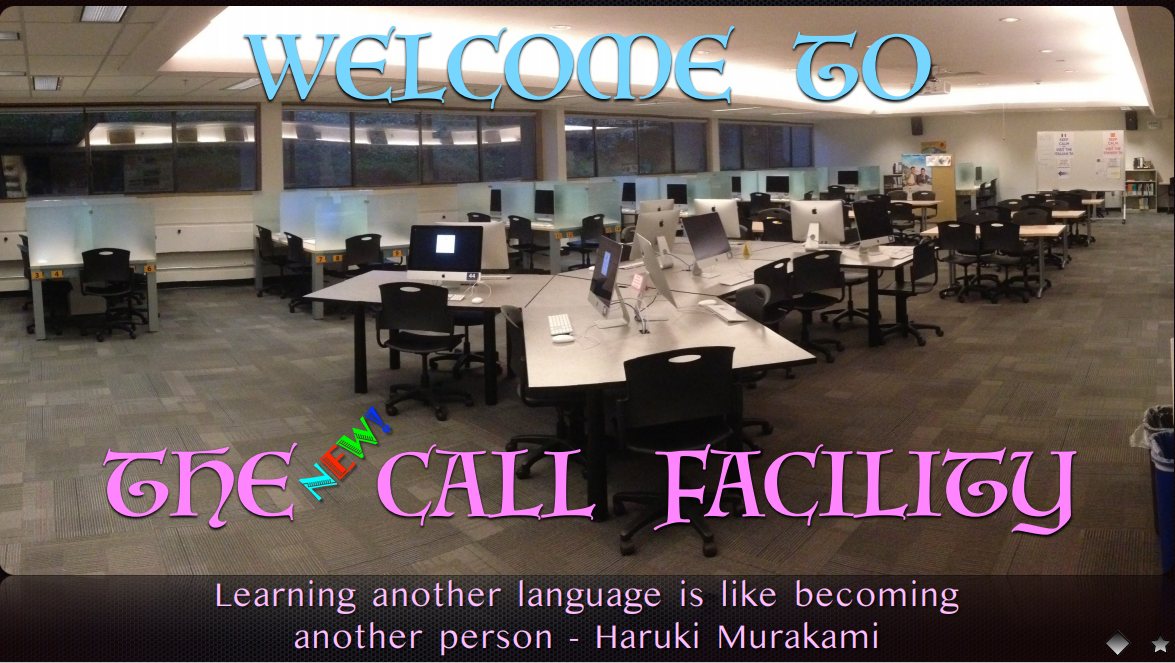
 The CALL Facility

BogBlog Pages
BogBlog Pages

And, I saved the BEST for the last! And no apologies for .. WORKING IN THE CALL FACILITY! Shameless promotion! CALL has been around since the Fall of 1989 … and so have I! I have given countless demos, orientations, workshops, projects and assistance to countless students, staff, faculty and guests. And I am amazed each year how many people DO NOT KNOW WE EXIST! I have done many CALL OAC posts and I have a PAGE that is always available no matter what Post you are reading, listing all the Pages too. It is only current to January of 2020 … because … well … Covid. As soon as we are back, I will update absolutely EVERYTHING!

The CALL Facility CLE A025

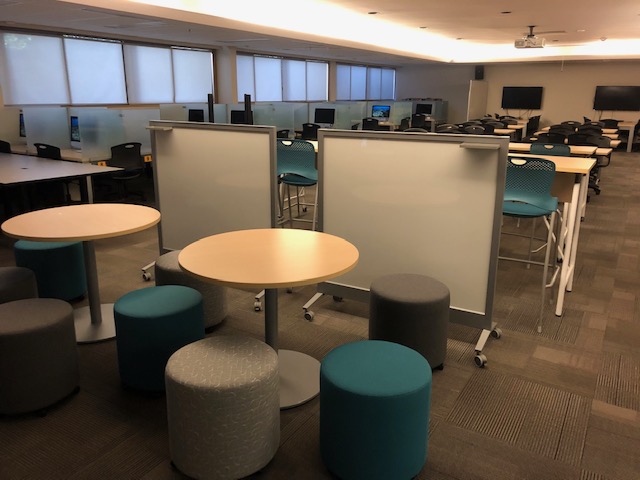
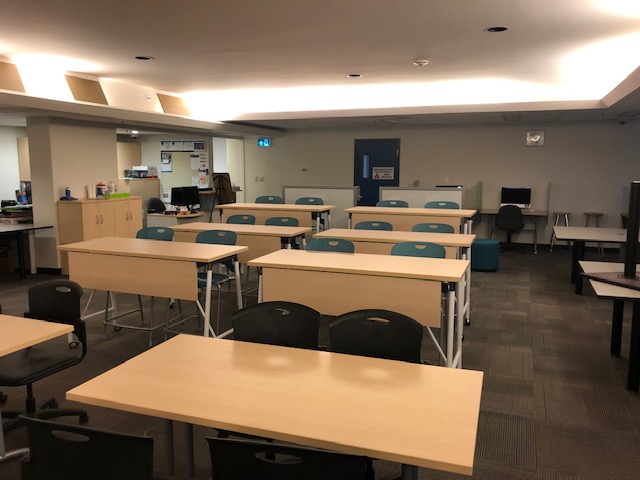
What is VERY exciting is that just after everyone started to work from home .. NEW FURNITURE ARRIVED IN THE CALL FACILITY! I wrote a post about it here and a few of the photos are below! Click here to see all the new furniture!

New CALL Furniture
New CALL Furniture
New CALL Furniture
New CALL Furniture

And could it get BETTER? YES, OF COURSE!

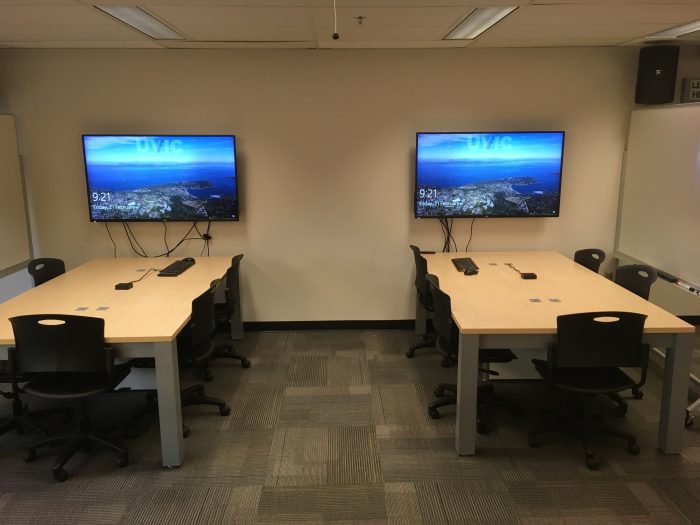
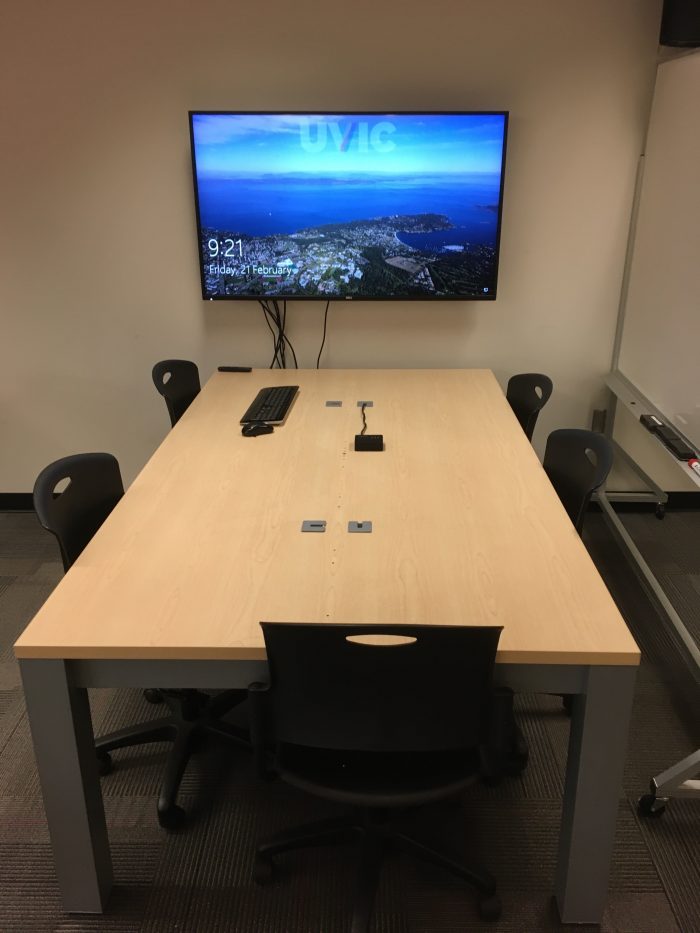
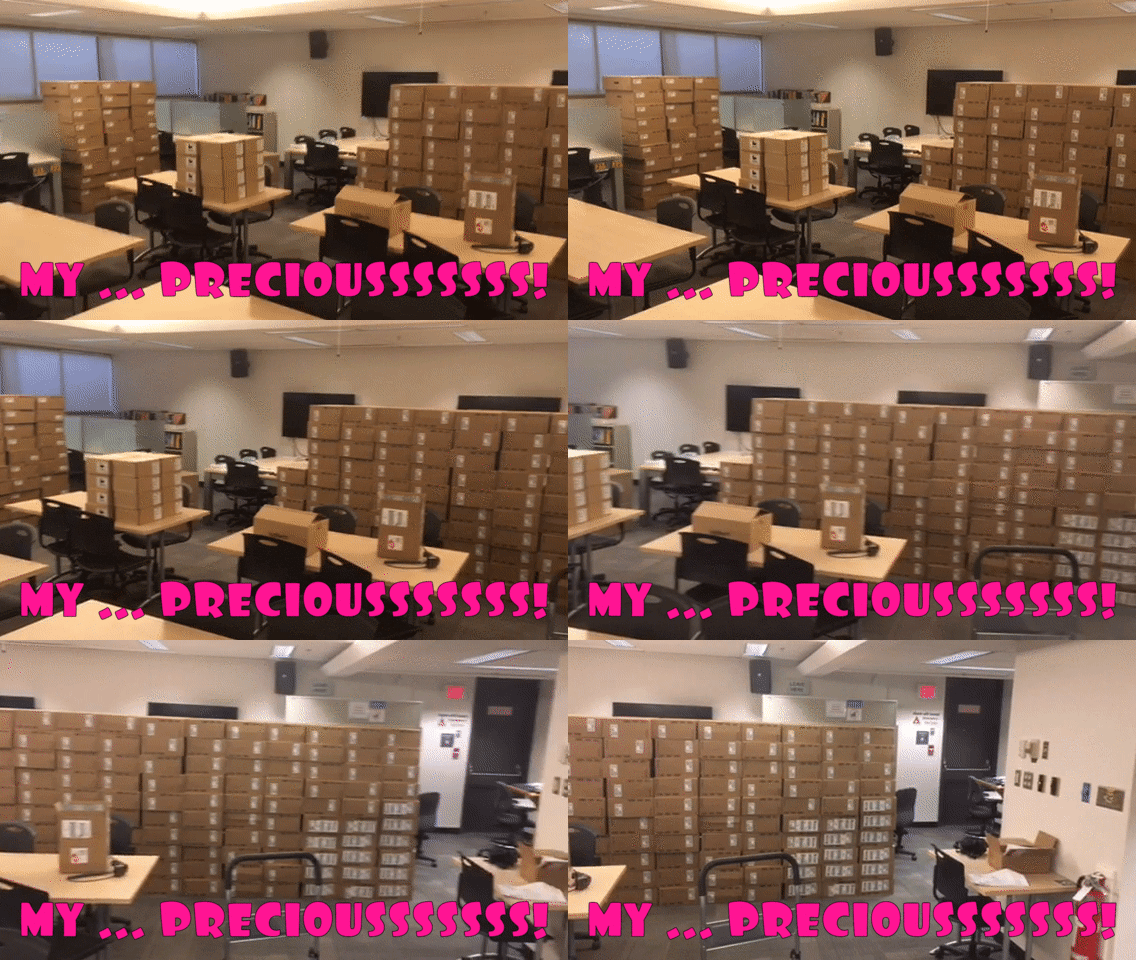
At the back of CALL are 2 new large screen monitors and desk space for 6 people at each one! Want to preview your group project in PowerPoint? Want to watch a movie for class? Want to see your Word document SUPER SIZED? Then use this area!

CALL Facility Large Screens

And CALL has USB headsets, optical media, Dual-Boot computers, study space and … The Computer Help Desk BUILT IN TOO! The CALL Facility is the LARGEST COMPUTING CLASSROOM ON CAMPUS!! And yeah, I have been working there since 1989 and it is SO MUCH FUN! Great learning environment and best of all … GREAT UVic STUDENTS AND FANTASTIC COLLEAGUES AT THE HELP DESK!

True story – a student wandered into CALL one day, asking if she could find a computer to charge her iPhone. I said sure, she could use one of the iMacs for either WIN or MAC or just to charge! She asked what ‘this place‘ was. I then asked her what her degree/major was. She replied ‘Linguistics and Italian’. I told her that CALL was HER lab to use, not only for her courses, but at any time she wanted!

And then she said that she was ABOUT TO GRADUATE AND HER PROFS HAD NEVER TOLD HER ABOUT THE CALL FACILITY!

That definitely qualifes The CALL Facility as a Hidden Gem!

I  hope you investigate and look for all these Hidden Gems in Clearihue!

  1. The Computer Help Desk – 3 locations in Clearihue
  2. Computing Classrooms – Upstairs and Down
  3. Clearihue Corner – So quiet
  4. Inner Courtyard – Hiding in Plain Sight
  5. The CALL Facility – You can check out, but you can never leave

BE SAFE EVERYONE!

Pandemic


OAC WordPress Tutorials . . . UPDATED

OA WordPress  Tutorials
ARE  BUILT  IN  FOR  YOU!

  🔥   UPDATED POST!   🔥

(Original  Post is here)

So, you are about to create a strange new thing – A BLOG! But not just ANY blog – your very own Online Academic Community OAC UVic FREE  BLOG!

If you have UVic Netlink ID credentials … then you can have a WordPress blog hosted by UVic! It is that simple … mostly! It really IS that simple!

And this will be a very short post … just to get started on what to simply WATCH FIRST before you do anything, other than … create your blog name first. And you CAN create multiple blogs too, one to test and one to actually post on. Totally up to you!

So, if you are THIS far, then you have already created a blog name for yourself. If not, then go to Online Academic Community OAC and create one for yourself with your credentials.

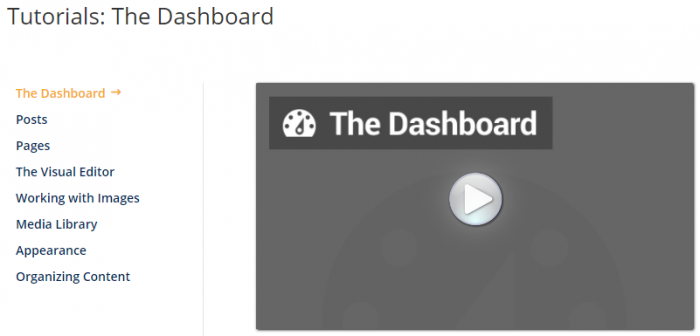
The WordPress Tutorials, as originally posted and directly from your Dashboard, do not seem to be available right now. BUT there are new videos at Tutorials: The Dashboard, as shown below! The link is also here, and you can also click on the image below to go directly there. The categories below are all clickable too!

That is it! You are basically reading the recipe book, before picking out what dish to make first! And as you go through, in any order, go back to a previous one as it might just be a ‘light bulb’ moment of connecting various tutorials, techniques, features and ideas!

Post photos, quotes, YouTube links, UVic sites, recipes, essays, thoughts, poetry, art, jokes, and anything you want to share! Release your inner artist! See what happens!

I still go here and will continue to check out the tutorials to discover new things to try! All you need to get going is all waiting inside OAC for you!

ENJOY!

Pandemic

Happy Holidays and . . . Goodbye 2020 … Hello 2021 !!!

Goodbye 2020 . . . . 
. . . and even BETTER . . .
HELLO 2021 !!!!!!!!!!!!!

After today (18th) I am on holidays until January 4th, 2021! YAY! And they can’t come soon enough! This  has been a very challenging year ….. to say the least. And I think we can all agree on one thing ………………

2020 – DON’T EVER COME BACK AGAIN!
AND I MEAN EVER!!!!

I am SO grateful to be working with such amazing, talented and imaginative colleagues at The Computer Help Desk! They are more than friends, and they all feel like family to me, especially during this year! They have made it fun to ‘come to work’ each and every day … at the West End of my Dining Room Table! I am pretty sure I would have been fired from any other job … for all my jokes and puns!

The Computer Help Desk  is my ‘Team OF Teams‘ for 2020!!!

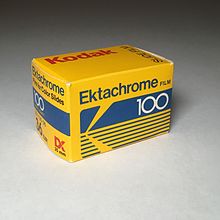
I will be back in 2021 with more Posts and Pages! I am even thinking of creating one just for my photography! Just photos I have taken over the years and share them. I must admit that my preferred photograpic media has always been … SLIDE PHOTOGRAPHY! Good old Kodachrome! And to be even more specific, Ektachrome! Visions of Paul Simon and my summers of ’77-78 working at the Banff Camera Shop! Except, I had a Canon A-1 camera!
But digital photography is amazing – darn cheap too! I like to think of my iPhone, not as a phone that has a camera … but as a camera that has a phone!

And of course, all kinds of computer hints, tips, stories and just miscellaneous ramblings of someone who is still amazed that his vintage  Commodore SX-64 ……is still working! It was the first computer I bought!

SX-64
                                           SX-64

And technology is still … MAGICAL … to me!

Everyone have a safe and healthy holiday season!

The best is yet to come in 2021!

BE SAFE EVERYONE!
See you all in 2021!!
!

Pandemic